None of this is about willpower. It's about how much manual work a terminal-only workflow demands.
Upload your MT5 statement and your whole history lands in one import.
Copying tickets, prices and sizes out of MT5 by hand is slow, and every manual entry is a chance to fat-finger a number.
A cropped equity curve or a single winning ticket proves nothing — anyone can edit an image, and a follower has no way to check it against the source.
Broker-synced trades carry a verified badge and locked execution data that can't be altered after import.
Everything here maps to a real step in the pipeline that turns your MT5 history into a journal.
Export your MT5 Account History as HTML, XLSX or CSV and upload it — trades are parsed, matched to instruments and added to your journal in one go.
Connect your MT5 account once and new closed trades sync in on their own, roughly every hour, with nothing left to import by hand.
Trades that come from a statement or a live sync carry a verified badge, so anyone viewing your profile can see which numbers are broker-sourced.
Entry, exit, size and result are locked once imported — you can add notes and tags, but the numbers that matter can't be quietly edited.
Mark your account live, demo, prop-firm or competition, so your record is upfront about what kind of account produced it.
Symbols from your broker — including suffixes like GBPJPY.a — are matched to the right instrument automatically, so pip and R figures stay accurate.
No guessing at your history — every field below comes straight from your statement or your connected account.
Upload a statement or connect your account and trades appear without retyping a single ticket.
Execution data from a statement or sync can't be edited, so the imported part of your history can't be rewritten later.
Connected accounts are checked roughly every hour for new closed trades.
Statement import is available on Trader; automatic sync is a Pro-plan feature.
Export your MT5 Account History report, or connect your account with your investor password on the Pro plan.
TradingSocial reads the report or the live feed, matches each symbol to an instrument, and prepares your closed trades for import.
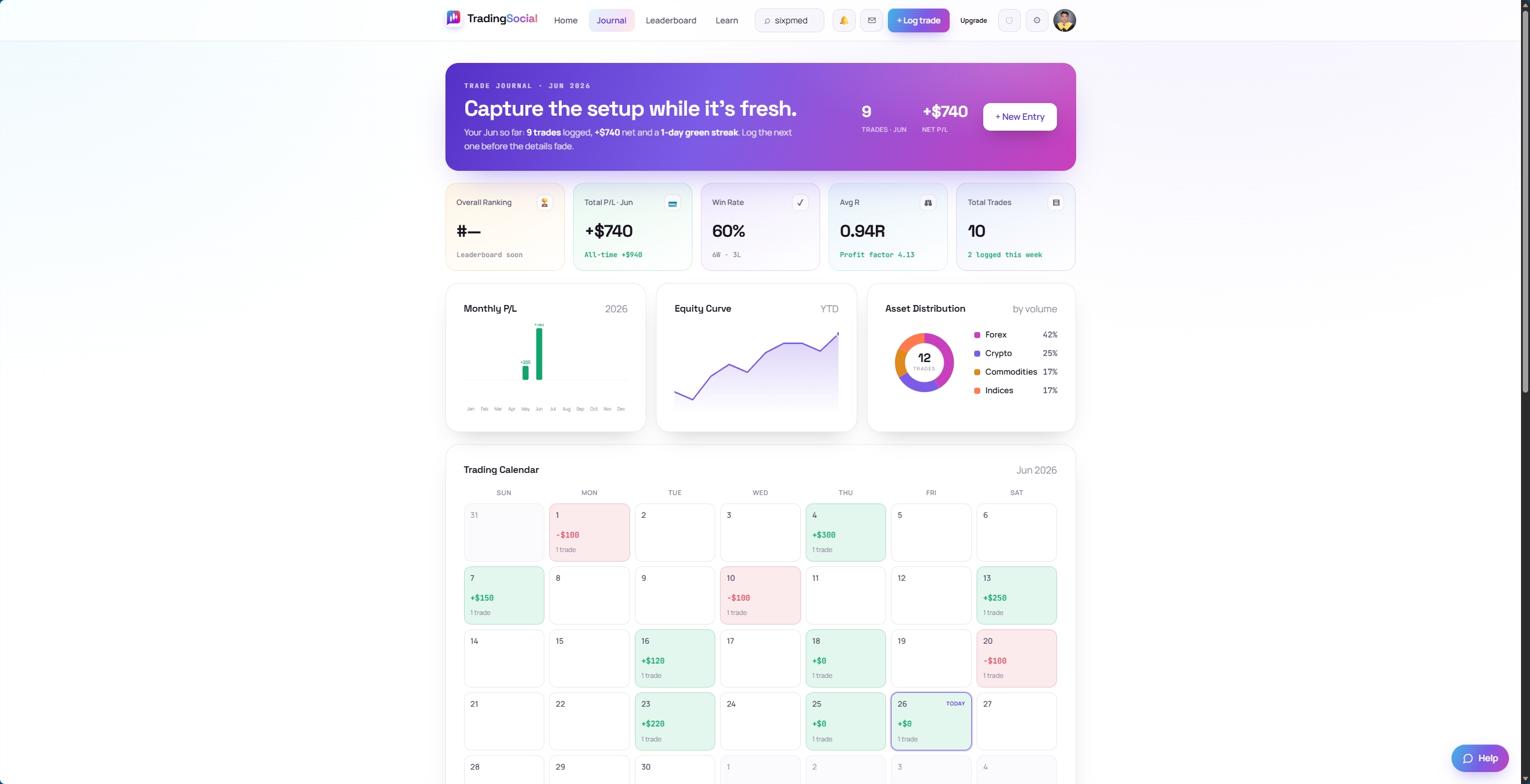
Your journal fills in automatically — entry, exit, size and result locked, and a verified badge on every trade that came from MT5.
The statement import did in two minutes what would have taken an evening of retyping tickets. Now I don't think about it — it just syncs.
Why imported trades are worth more than typed ones
On TradingSocial's Pro plan, connect your account once and closed trades sync in automatically, roughly every hour. On the Trader plan, you import an MT5 statement manually whenever you want your history updated.
TradingSocial reads MT5's Account History report as HTML, XLSX or CSV. In MT5, right-click Account History, choose Report, export the file, then upload it — closed trades are parsed and matched to instruments automatically.
Yes — you connect with your investor password, not your main login, a read-only credential your broker issues for reporting. It can't place trades or move funds, and it's passed to the sync service once and never stored.
Not yet. MT5 is the only platform TradingSocial syncs or imports from today — MT4 and other brokers aren't supported. You can still log those trades manually alongside your synced MT5 history. If MT4 support matters more to you than provenance, our guide to choosing an MT5 trading journal is honest about which tools cover it and we don't.
Only closed trades. TradingSocial journals closed trades — entry, exit, size and result — once MT5 has settled them. Open positions won't appear in your journal until you close them. If you need a journal that also covers MT4, our TraderSync comparison is the honest place to start — they publish it and we don't.
Upload a statement or connect your account and let your closed trades journal themselves — verified, locked, and ready to review.